The Payment methods addon is ready to display the WooCommerce Payment methods. Just need to activate the addon from the plugin Addons tab and save the settings.
This addon only will work if you use it in a page selected as the WooCommerce account page, so you can use it in the by default WooCommerce account page, removing the by default shortcode [woocommerce_my_Account] to avoid conflicts and ensure that it will work correctly.
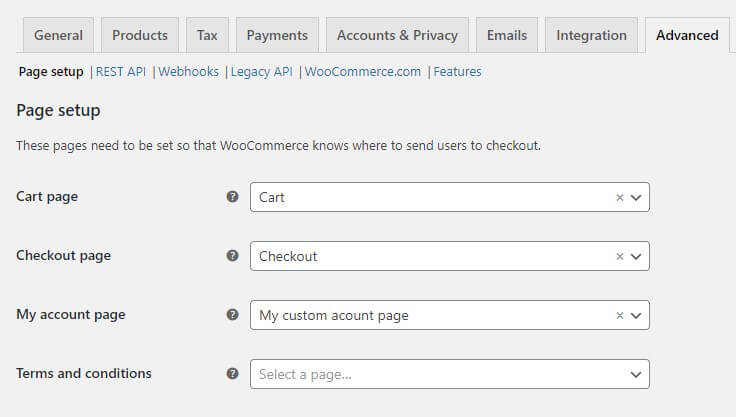
Also, you can build your custom account page from scratch and assign it as the WooCommerce account page, to do it just need go to: WooCommerce > Settings > Advanced and look for the dropdown menu where you can choose the page as the WooCommerce account page.
You can use this widget directly on the account page with just drag & drop. Although it can also be added in an Elementor template, so that later you can add it where you need, for example as tab content using the Advanced tabs extension.
How to configure the Addon?
This widget not includes any option to set, so you can start to customize the style directly.
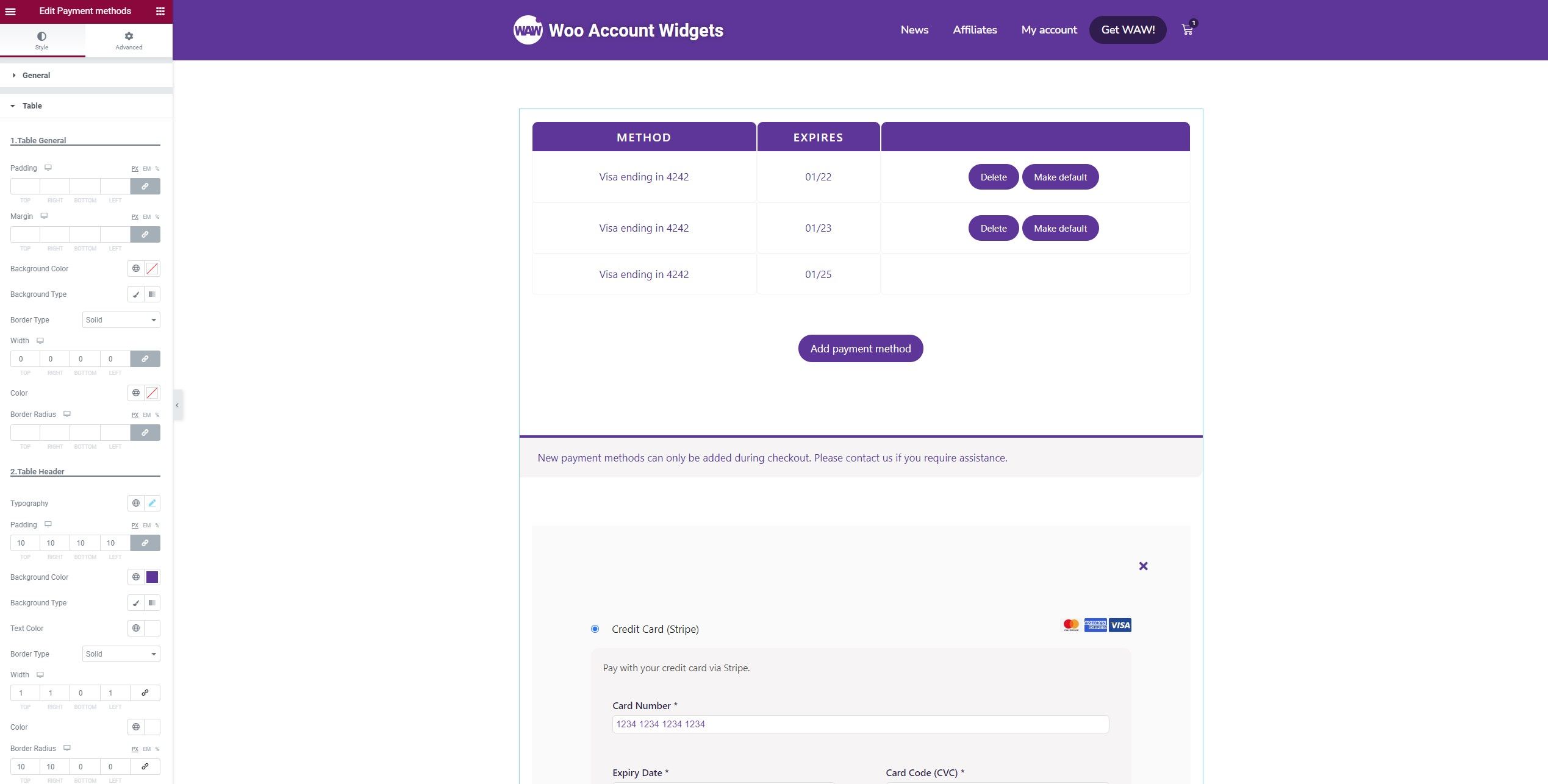
It is very customizable in terms of styles, it has style options to customize each element individually, as well as:
General Container
Table General
Table Header
Table Content
Action Buttons
Add Payment Button
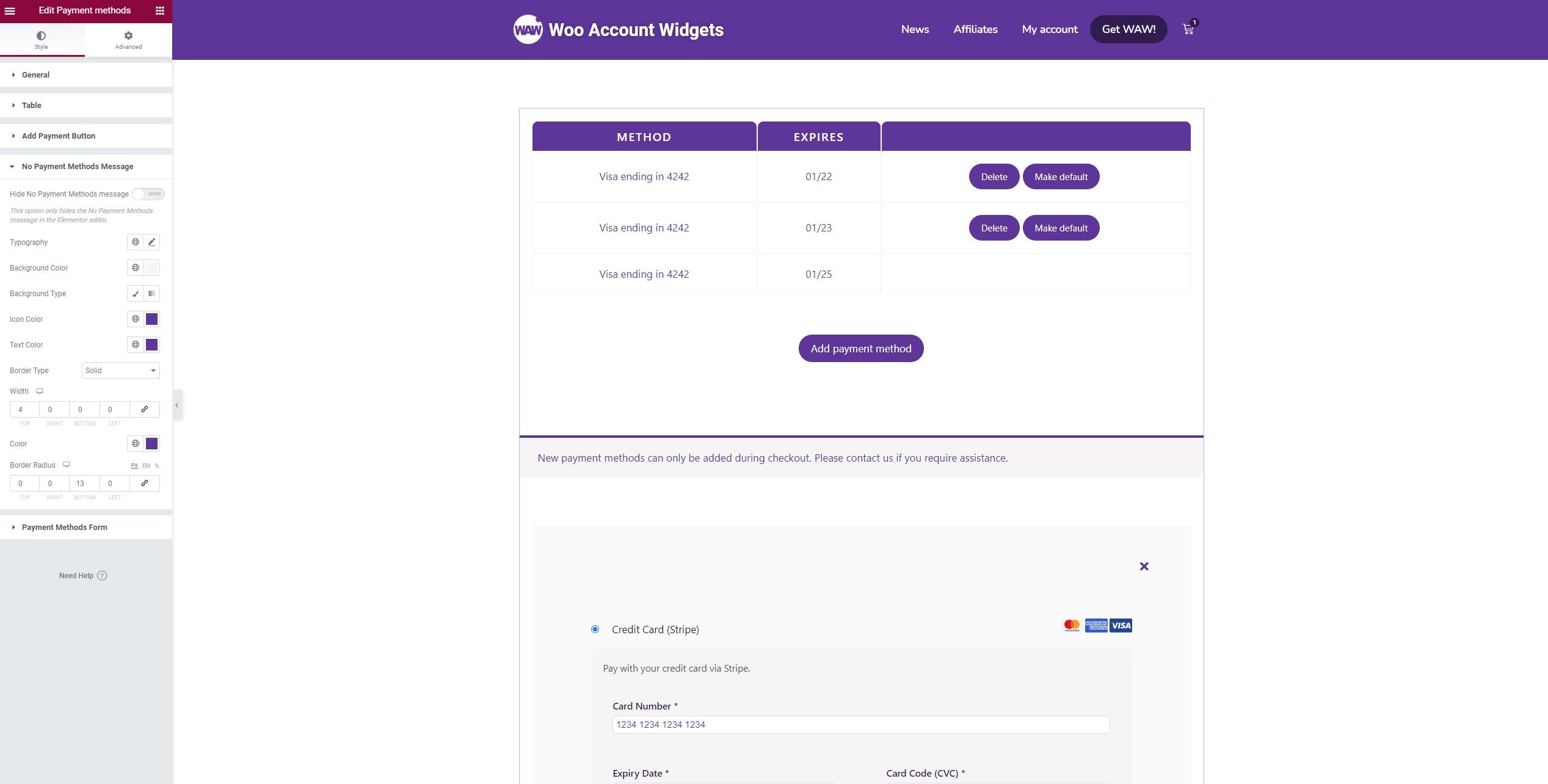
You can also show the message that appears when have not any payment method saved and thus be able to apply styles to it from the Elementor editor and in real time.
You can configure the container, the icon, the message and the button independently, and you can also hide it so that it is not shown in the editor and keep a less cluttered view when you have finished configuring it.
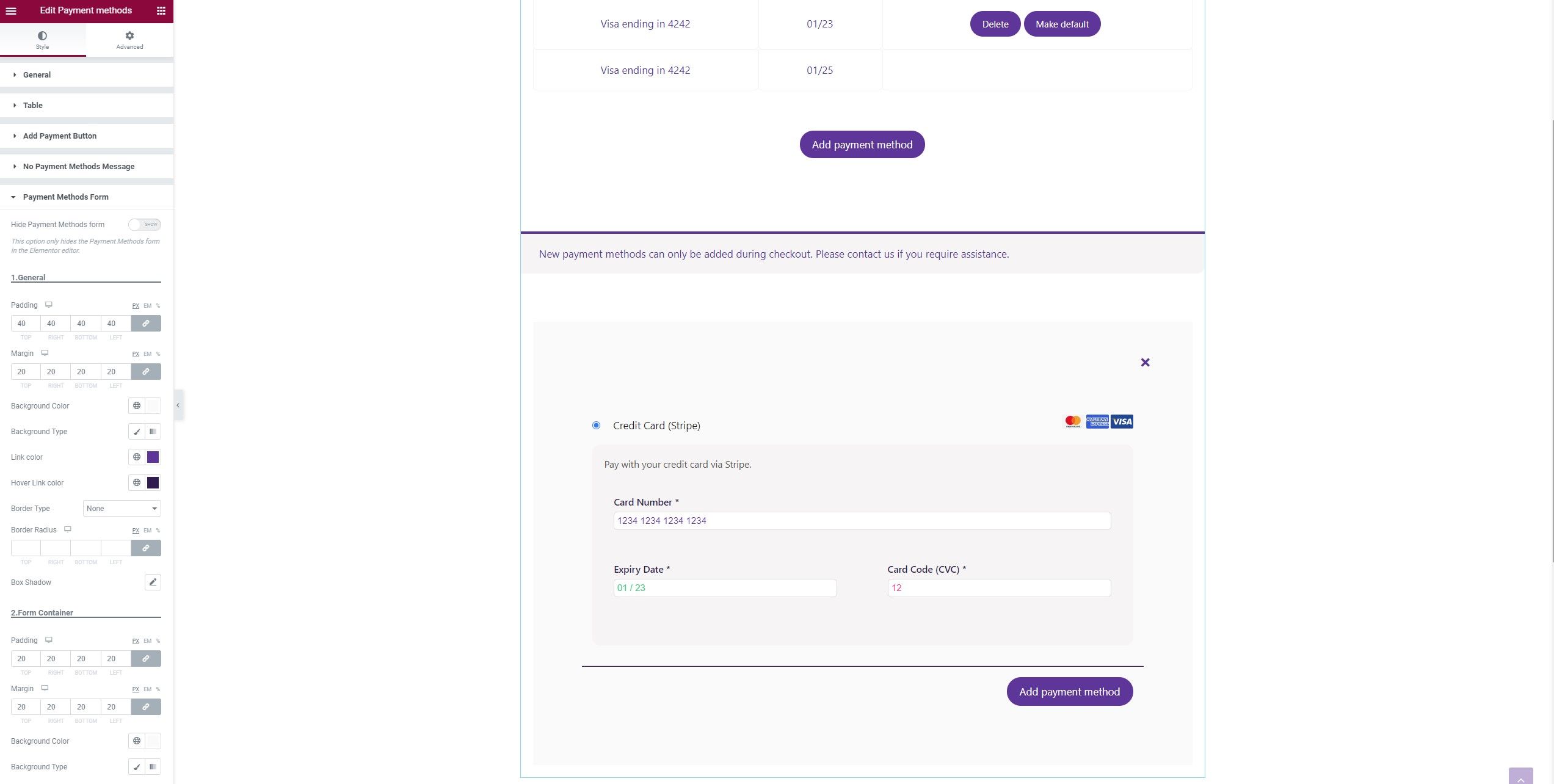
Also in the same way you can show the payment methods form, to be able to apply styles from the Elementor editor and in real time. You can configure everything part by part as well as:
General Container
Form Container + Separator
Form Payment Box
Form Labels
Form Fields
Form Button Container
Form Button
NoteBoth the payments method table and the Payment form will be displayed even if you not have it completed, offering test results.
If you have any payment methods saved, it will show the real information with your saved payment methods.
Additionally, you can close the payment methods form by clicking on the button in the upper right corner, and you will be redirected to the last point where you were. This button receives the style from the Payment method’s form link style option, although you can also apply a custom style with CSS. To do this, you just have to use the class add_pay_method_closebtn
NoteIt is recommended to create an Elementor template and add the Payment methods widget, in addition to using the WAW "Advanced Tabs" extension, adding the Elementor template created as a tab content and activating the "Linkable Tabs" option available in the widget settings, so that advanced actions redirect correctly.
4.7/5 - (27 votes)
These cookies can not be eaten, but they are great analyzing traffic to improve your browsing experience. Do you accept them? ACCEPTREJECTRead More
Cookies
Privacy Overview
This website uses cookies to improve your experience while you navigate through the website. Out of these, the cookies that are categorized as necessary are stored on your browser as they are essential for the working of basic functionalities of the website. We also use third-party cookies that help us analyze and understand how you use this website. These cookies will be stored in your browser only with your consent. You also have the option to opt-out of these cookies. But opting out of some of these cookies may affect your browsing experience.
Necessary cookies are absolutely essential for the website to function properly. This category only includes cookies that ensures basic functionalities and security features of the website. These cookies do not store any personal information.
Any cookies that may not be particularly necessary for the website to function and is used specifically to collect user personal data via analytics, ads, other embedded contents are termed as non-necessary cookies. It is mandatory to procure user consent prior to running these cookies on your website.