How work this Addon?
The Login form addon is ready to display the WooCommerce Login/Register form. Just need to activate the addon from the plugin Addons tab and save the settings.
This addon only will work if you use it in a page selected as the WooCommerce account page, so you can use it in the by default WooCommerce account page, removing the by default shortcode [woocommerce_my_Account]Â to avoid conflicts and ensure that it will work correctly.
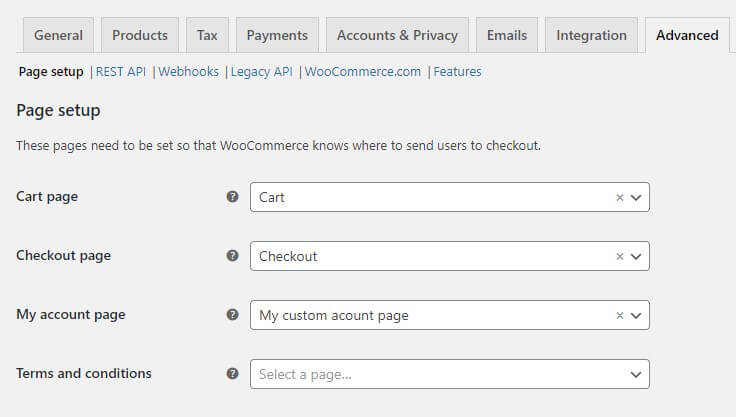
Also, you can build your custom account page from scratch and assign it as the WooCommerce account page, to do it just need go to: WooCommerce > Settings > Advanced and look for the dropdown menu where you can choose the page as the WooCommerce account page.
You can use this widget directly on the account page with just drag & drop. Although it can also be added in an Elementor template, so that later you can add it where you need, for example as tab content using the Advanced tabs extension.
How to configure the Addon?
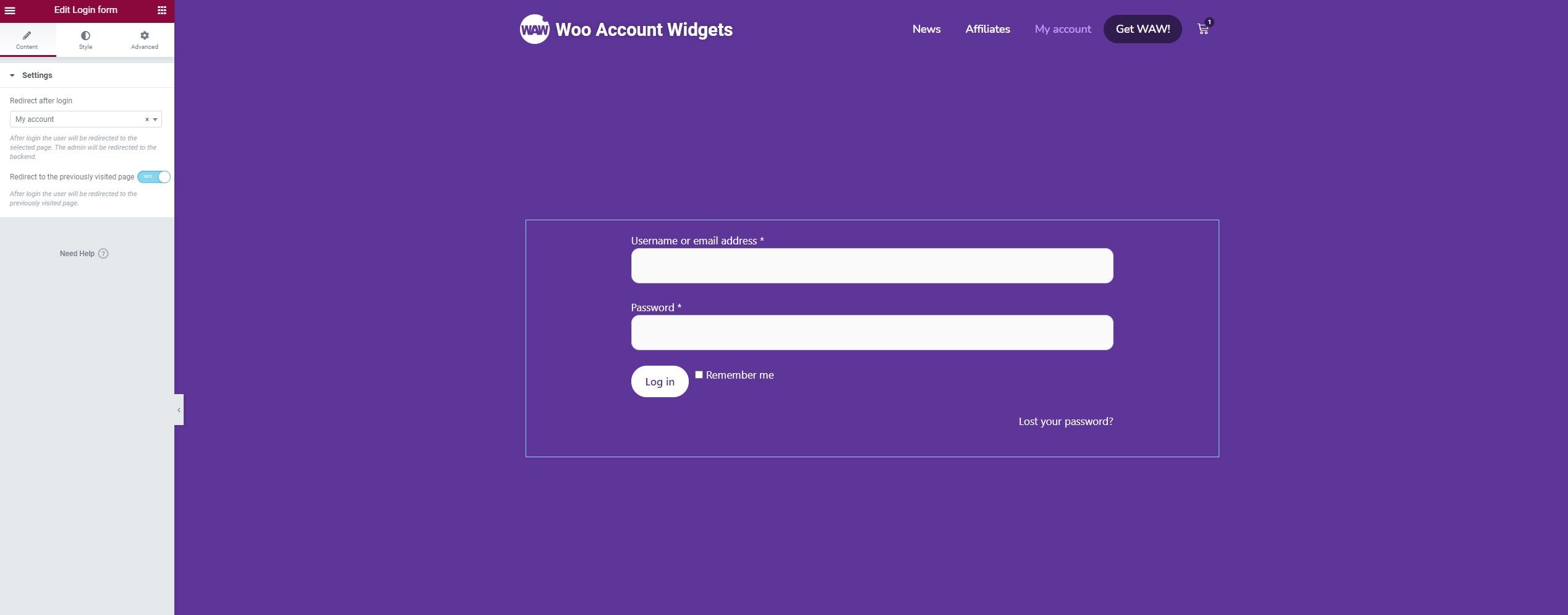
This widget includes an option to set where to redirect the user after login and other option to set if you want to redirect the user to the previously visited page.
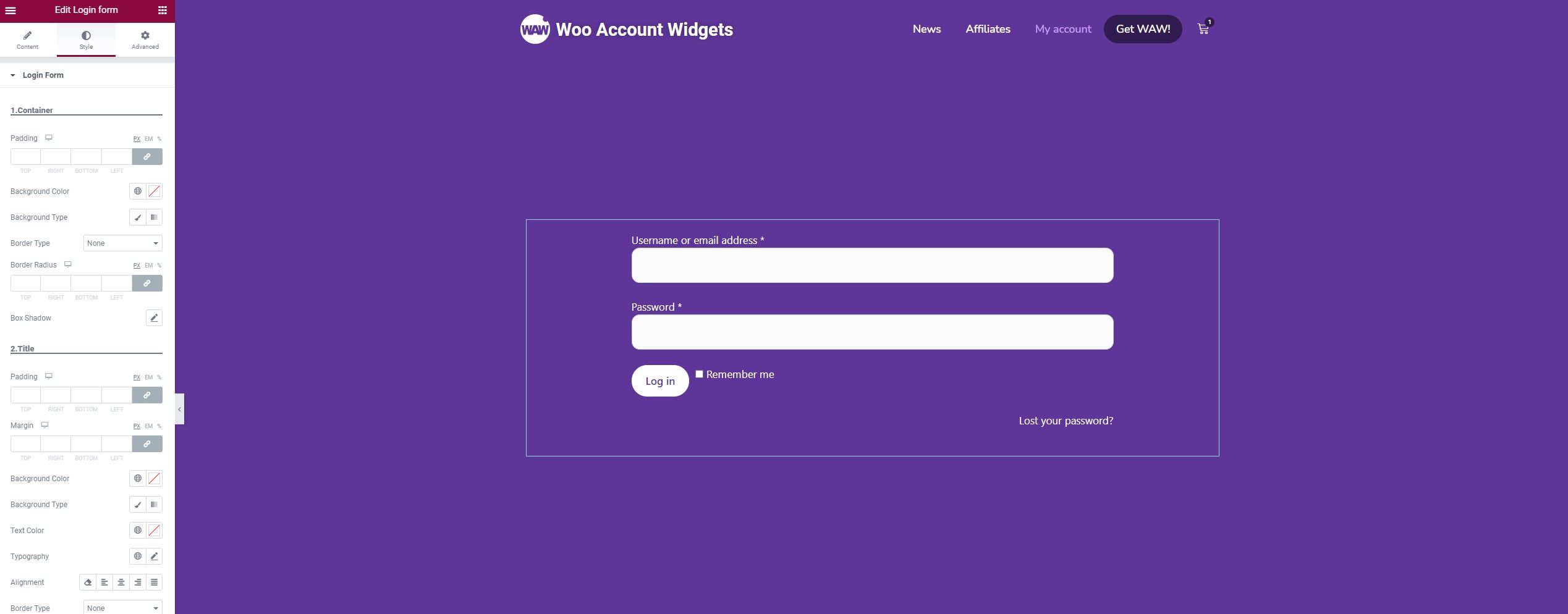
It is also very customizable in terms of styles, it has style options to customize each element individually, as well as:
- Container
- Title
- Form Box
- Form Labels
- Form Fields
+ Field status - Form Button
- Remember me
- Lost Password link
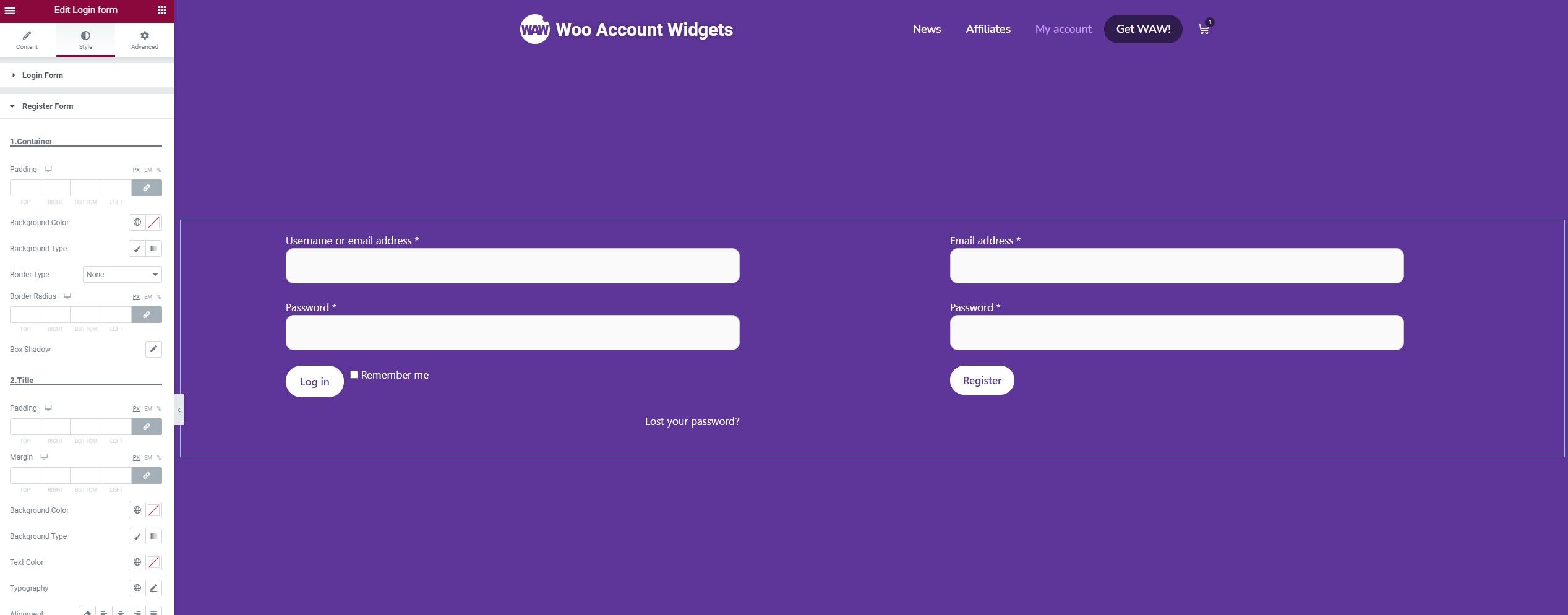
You can customize the Register form too, and it is also very customizable in terms of styles, it has style options to customize each element individually, as well as:
- Container
- Title
- Form Box
- Form Labels
- Form Fields
+ Field status - Form Button
- Privacy policy
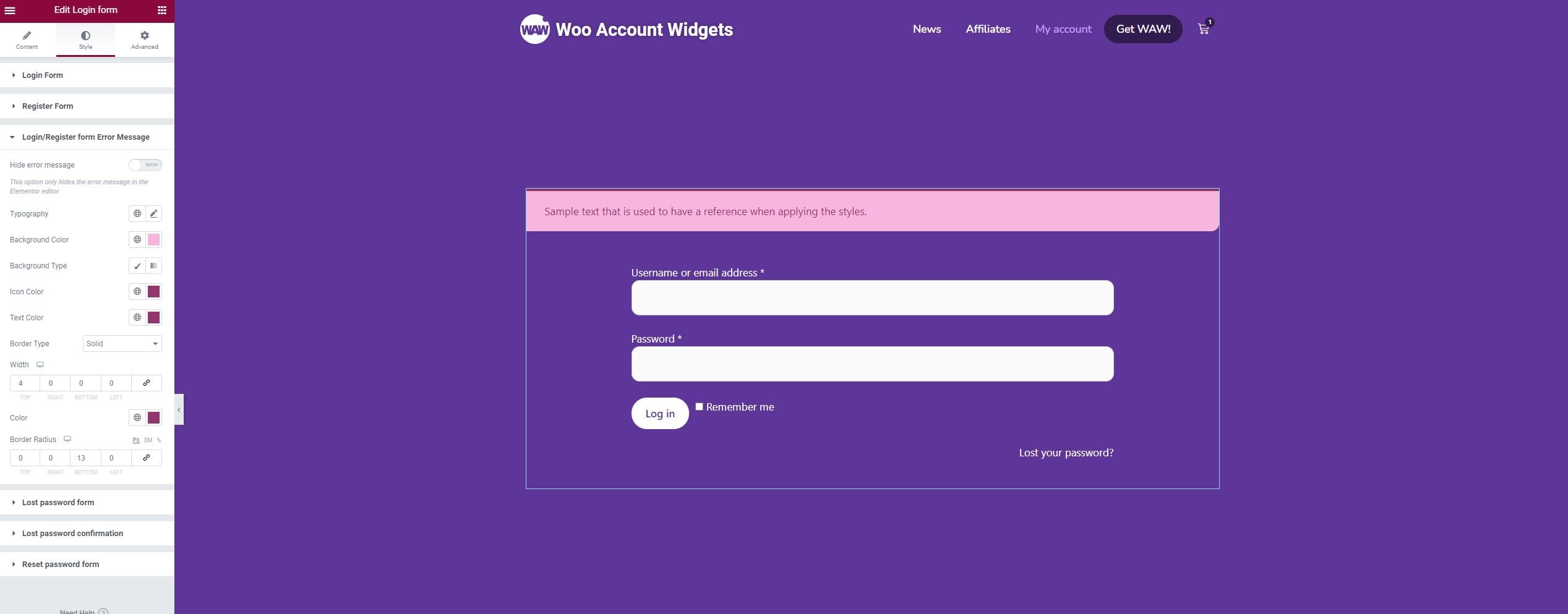
You can also show the error message that appears when the form has an error and thus be able to apply styles to it from the Elementor editor and in real time.
You can configure the container, the icon, the message and the button independently, and you can also hide it so that it is not shown in the editor and keep a less cluttered view when you have finished configuring it.
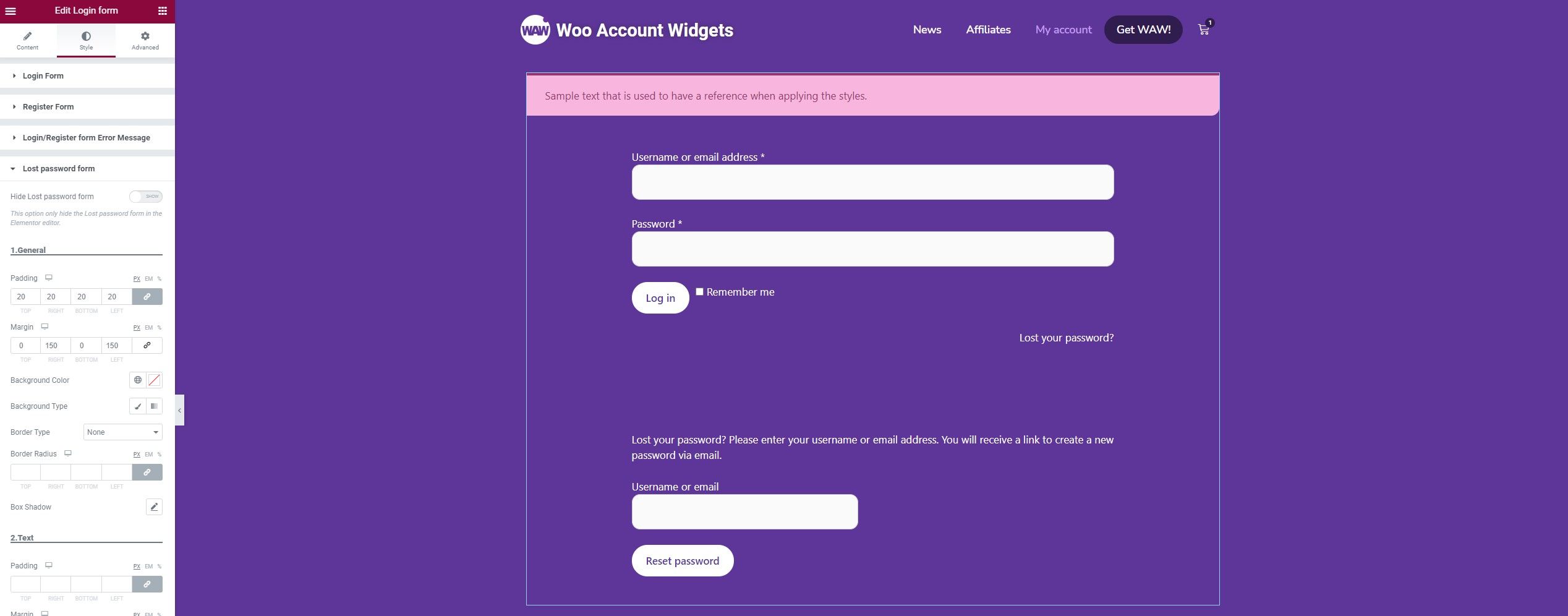
Also in the same way you can show the Lost Password form, to be able to apply styles from the Elementor editor and in real time. You can configure everything part by part as well as:
- General
- Text
- Label
- Form Fields
+ Form Status - Form Button
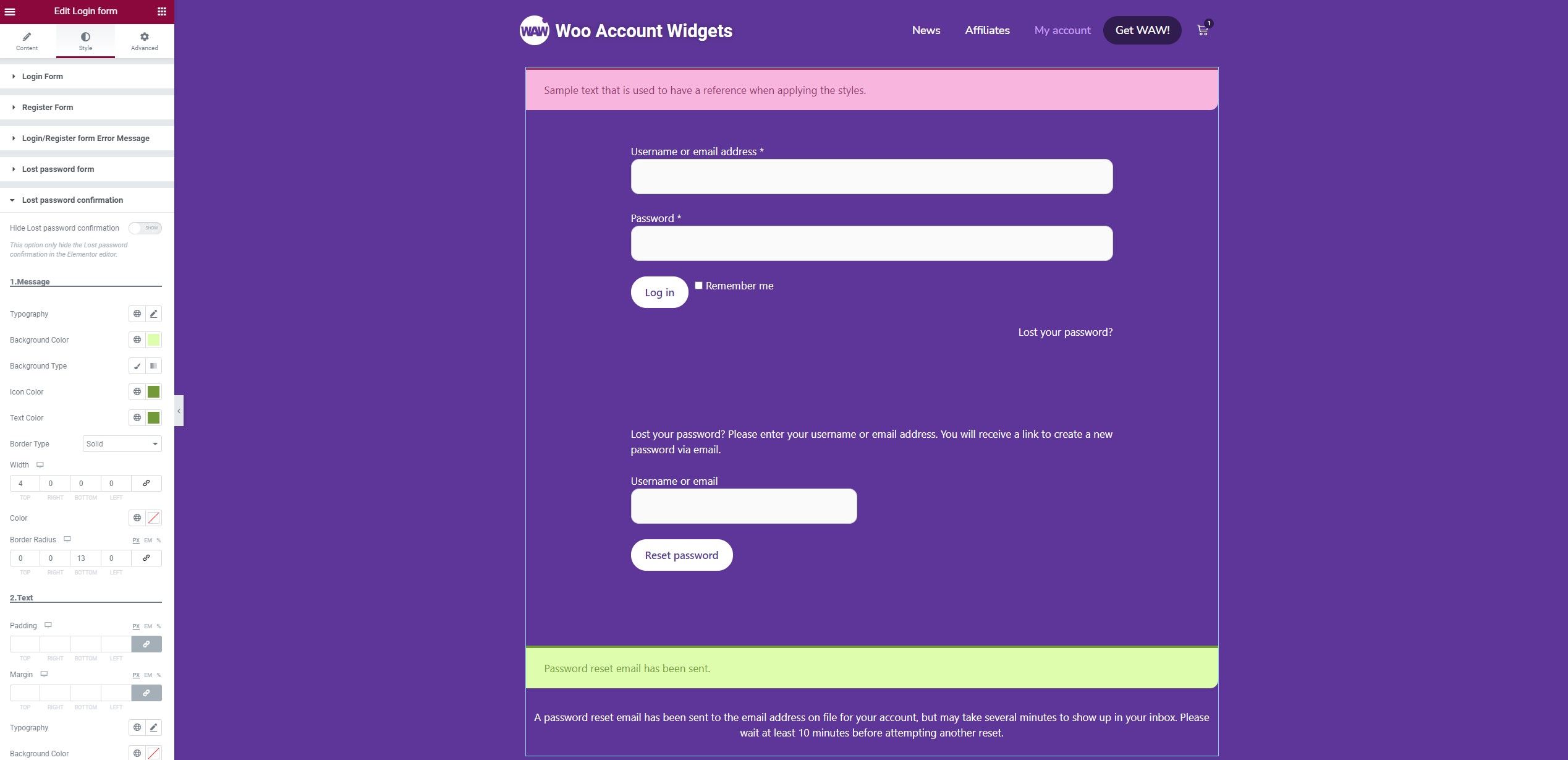
You can also show the Lost Password confirmation that appears when the user sends the lost password request and thus be able to apply styles to it from the Elementor editor and in real time.
You can configure the container, the icon, the message and the button independently, and you can also hide it so that it is not shown in the editor and keep a less cluttered view when you have finished configuring it.
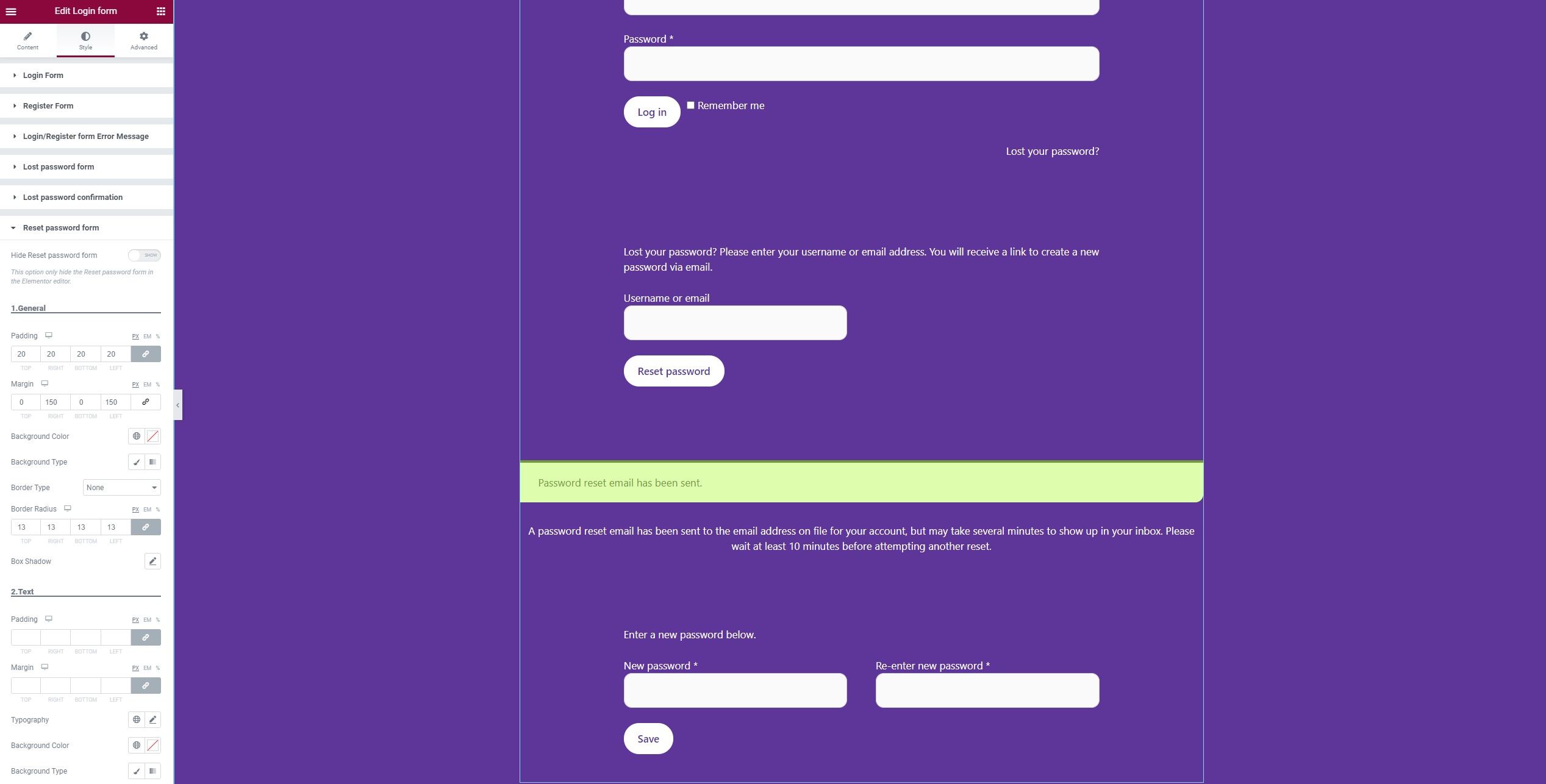
Also in the same way you can show the Reset Password form, to be able to apply styles from the Elementor editor and in real time. You can configure everything part by part as well as:
- General
- Text
- Label
- Form Fields
+ Form Status - Form Button